Introduction
The Tasks module in Dilmach CRM is the central nervous system for all operational activity within the company. It was designed from the ground up not merely as another to-do list, but as a complete operational control center that brings together task planning, responsibility distribution, deadline management, team synchronization, and deep integration with core CRM entities such as Deals, Clients, Departments, and internal communication tools.
In many companies, work still happens through chaotic chats, scattered emails, and endless “remind me later” messages. Tasks changes that completely. It transforms vague conversations into structured, measurable, and transparent processes. When every action has an owner, a deadline, a clear expected result, and a visible place in the overall company flow — management stops being reactive firefighting and becomes proactive leadership.
As our internal philosophy states: “If processes are not formalized, they cannot be managed. Tasks makes every process visible, accountable, and improvable.”
General Interface of the Tasks Section
When you first enter the Tasks section through the main left-side menu, you land on a clean, well-organized workspace. The interface uses a dark minimalist theme that reduces eye strain during long working hours and puts maximum emphasis on readability, status indicators, and quick visual scanning.
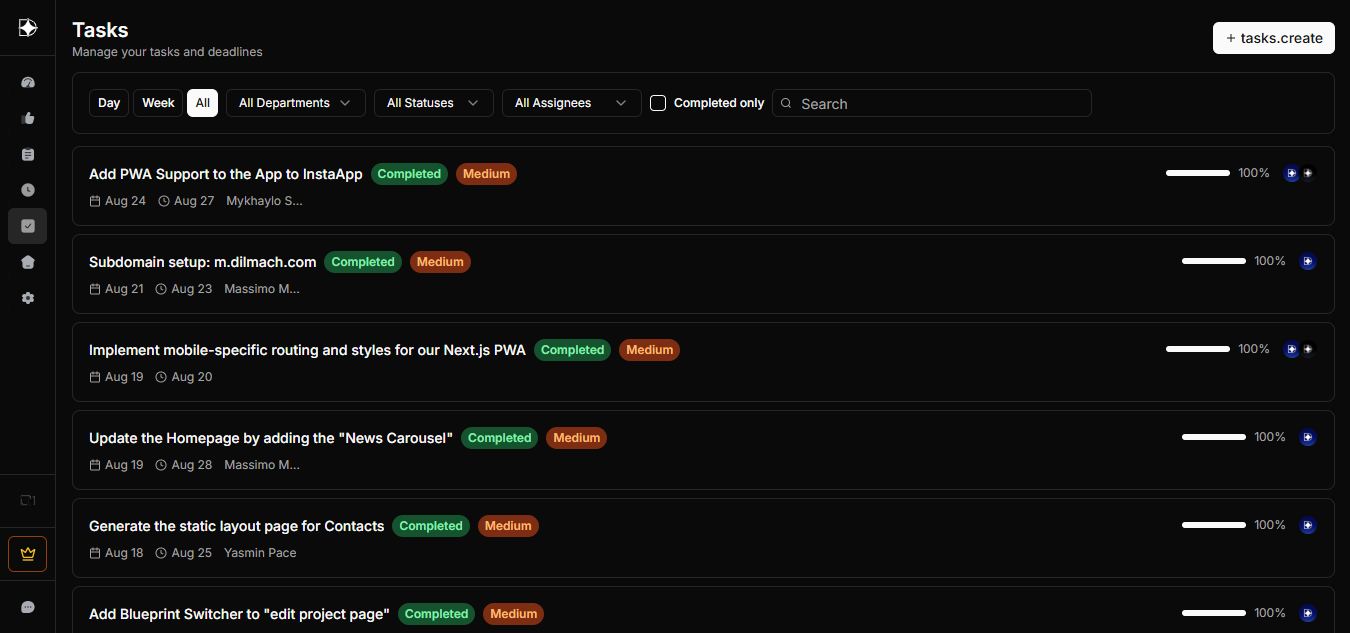
The screen is divided into three main areas:
- The top control panel (filters and quick actions) - The central task list (which changes dynamically based on filters) - The right sidebar (which appears when you open any task card)
Everything is built so that even a completely new employee can orient themselves in under 30 seconds and start working productively.
Top Control Panel — Your Command Center
Right at the top you will see a powerful yet simple control panel that lets any user instantly reshape the entire view of their work.

- Day — shows only tasks scheduled for today (perfect for daily stand-ups and personal planning) - Week — displays the full 7-day horizon (ideal for weekly planning and workload balancing) - All — removes any time restriction and shows every task in the system (used mainly by managers and executives for global oversight)
Next come the smart filters:
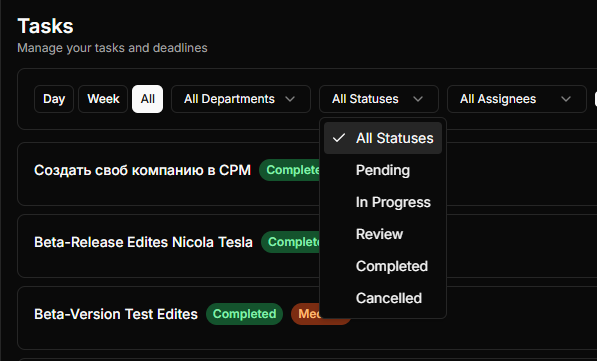
- Departments — Sales, Product, Commercial, Legal, Chief Executive, Product Marketing, or Unassigned - Statuses — Pending, In Progress, Review, Completed, Blocked, Cancelled - Assignees — any team member or multiple people - Completed only checkbox — for quick archive reviews or KPI reporting - Smart search bar that works across titles, descriptions, comments, and even deal names - Big prominent “+ Create Task” button
Every filter combination is saved automatically for your next visit, so once you set up your perfect view (for example, “Week + My Department + High Priority”), it stays exactly like that.
Time-Based Filtering in Practice
The Day view is where most employees start their morning. It shows only what needs attention right now, helping to maintain focus and avoid overwhelm. The Week view gives managers the ability to see potential bottlenecks before they become problems — for instance, noticing that Legal has 14 high-priority tasks due on Friday while Sales has only three. The All view is the CEO’s favorite mode: one glance reveals the entire operational health of the company.
Department Filtering — Structural Transparency
Tasks are strictly tied to departments. This is not just a label — it is a fundamental principle of scalability. When a task is created, the creator must choose (or the system auto-assigns) the responsible department. This allows every department head to see exactly the workload of their team without noise from other divisions. At the same time, the CEO and top management have full cross-department visibility.
Real example: the Sales department creates a task “Prepare commercial proposal for Client X” and assigns it to Commercial. Legal automatically sees when a related “Contract review” task appears. Everyone works in their own space but stays perfectly synchronized.
Statuses, Priorities, and Progress Indicators
Each task carries three visual layers that tell its story at a glance: - Status — shows current stage of life (Pending → In Progress → Review → Completed) - Priority — High (red), Medium (orange), Low (blue) - Progress bar — percentage based on checklist completion + manual adjustment
Colors are chosen deliberately: red immediately grabs attention for critical items, green signals success and closure. The progress bar updates automatically every time a checklist item is checked off, giving everyone real-time visibility without extra reporting.
Deep Dive into the Task Card (Full Anatomy)
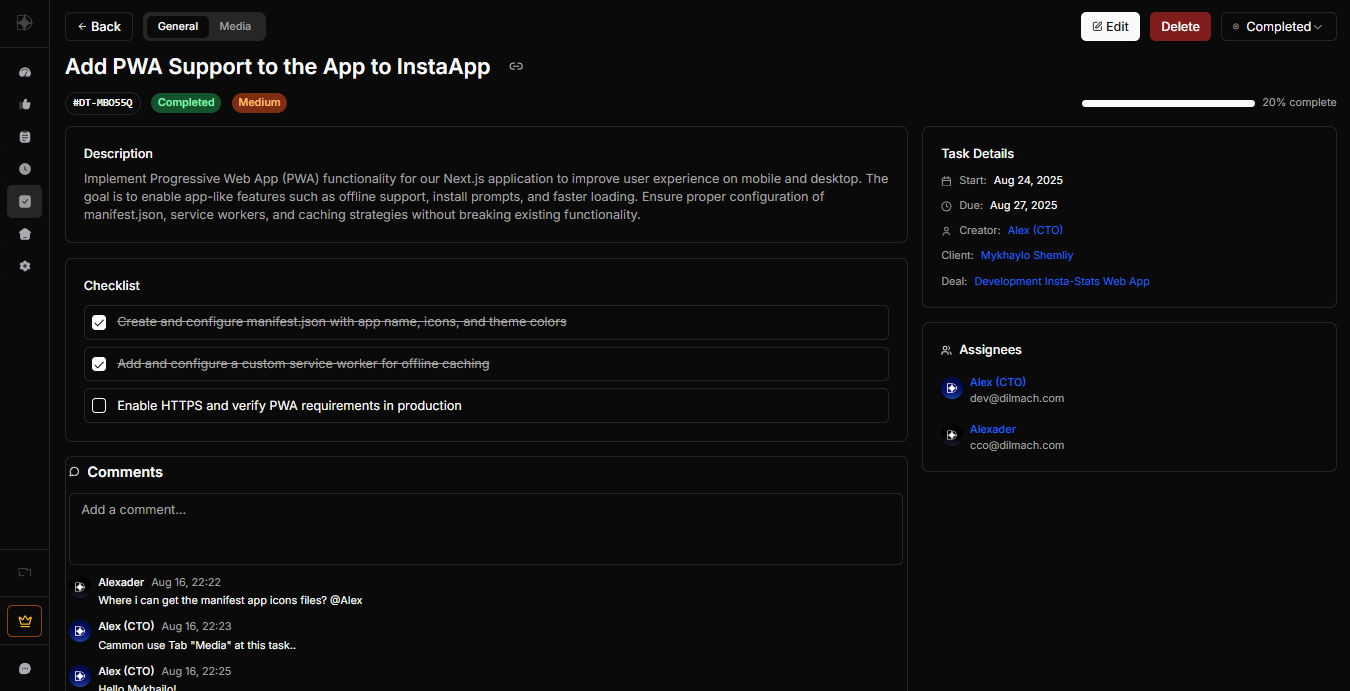
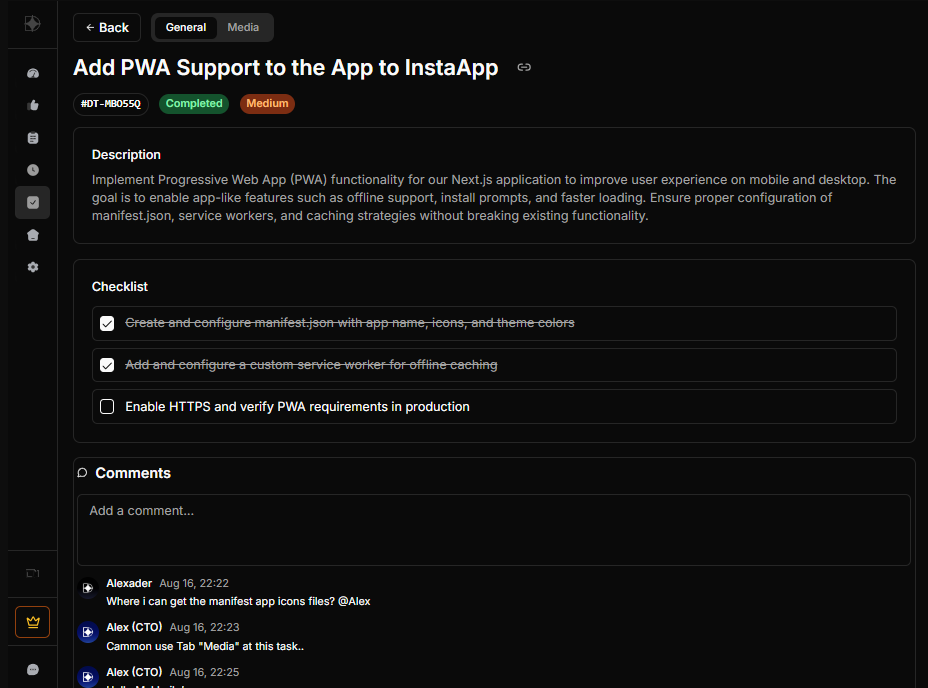
When you click any task, the full card opens in a clean two-column layout. Left side (main content):
- Task title and unique ID (e.g., TASK-2026-3487) - Status and priority pills - Rich description field (supports formatting, links, tables) - Full checklist with responsible sub-items and due dates per item - Detailed timeline (Start date, Due date, Time) - Creator information - List of assignees with avatars and current load indicators - Full comment thread with @mentions, file attachments, and reaction emojis
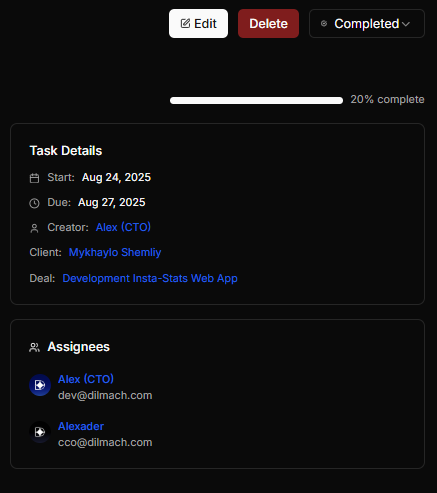
Right side (Task Details panel):
- Start and Due dates with time - Linked Deal (if any) - Department - Progress percentage and visual bar - History log (who changed what and when)
This layout was created after months of testing so that 95% of all necessary information is visible without scrolling.
Priorities and Progress Control
Priority is not just a color. High priority tasks appear at the very top of every filtered list and send additional notifications. They are the ones leadership expects to be handled first.
Progress calculation is intelligent: 70% comes from checklist completion, 30% from manual status updates. This prevents people from marking tasks 100% complete while half the checklist is still open.
Integration with Company Structure and Other Modules
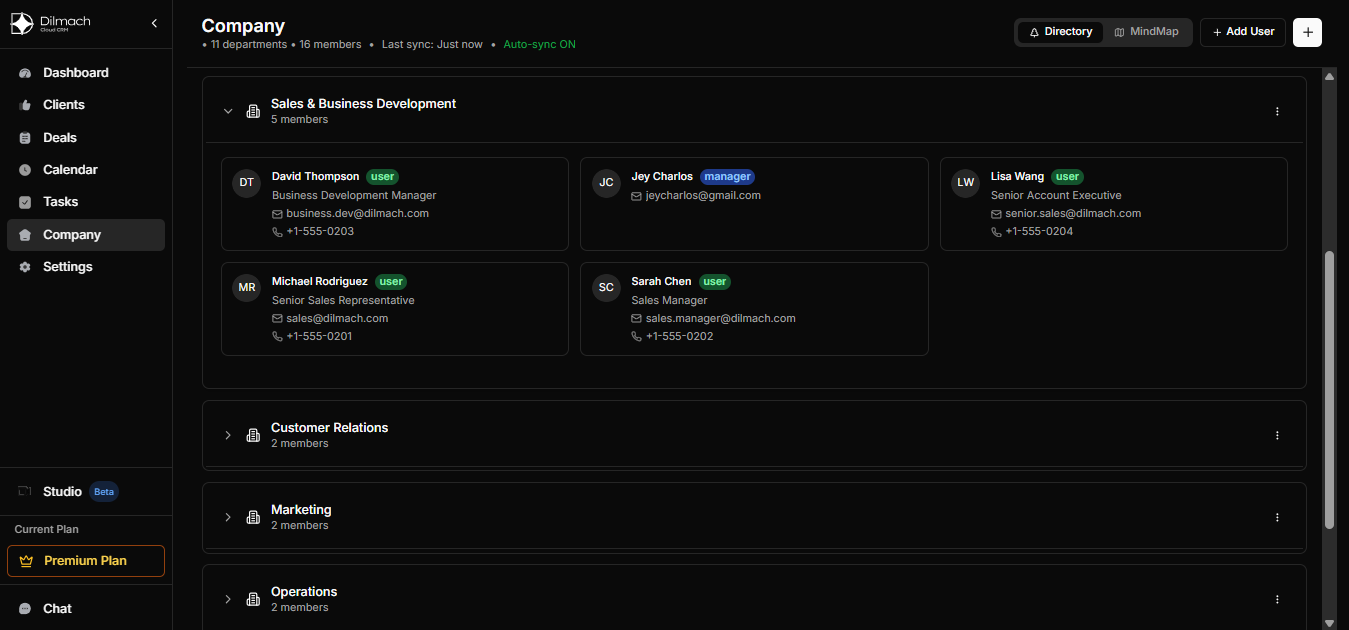
Tasks is deeply connected to the organizational hierarchy. A regular employee sees only tasks where they are assignee or creator. Department heads see everything in their department plus tasks assigned to their people from other departments. CEO and admins have full visibility across the entire company.
The module seamlessly integrates with: - Deals — tasks appear inside deal cards and deal timelines - Clients — client-related tasks are visible in client profiles - Team Chat — new comments in tasks can be pushed to relevant chat channels - Dashboard — key metrics (overdue tasks, team load, completion rate) are shown on the main company dashboard
Creating a New Task — Step-by-Step Philosophy
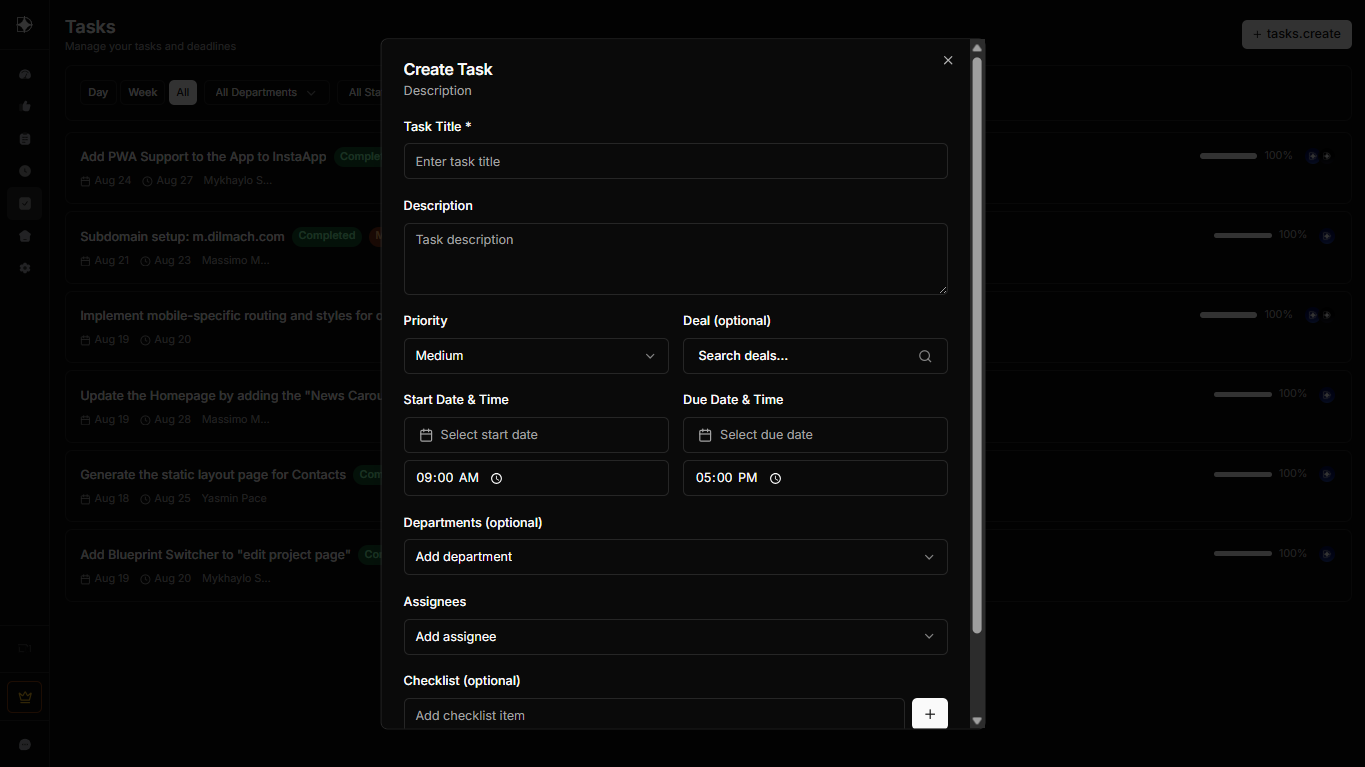
Clicking “Create Task” opens a smart form where every field has a purpose.
Then comes the description — this is where you explain the why, the what success looks like, and any context. Many mistakes happen because people assume others already understand the context. A good description prevents 80% of follow-up questions.
Checklist is one of the most powerful features. Break complex tasks into atomic steps. Each completed step automatically increases the overall progress. For legal or financial tasks this is invaluable — you can see exactly which clauses are still pending.
You can link the task directly to a Deal. This is where magic happens: when the sales manager closes a deal stage, Tasks can automatically create or update related operational tasks for Legal, Finance, Product, etc.
Date and time planning turns Tasks into a real daily scheduler. You can set both start and due moments with exact time — perfect for meetings, calls, or time-sensitive deliverables.
Roles and Access Rights in Tasks Module
Dilmach CRM uses a role-based access control (RBAC) system specially tuned for Tasks. Here is exactly what each role can and cannot do:
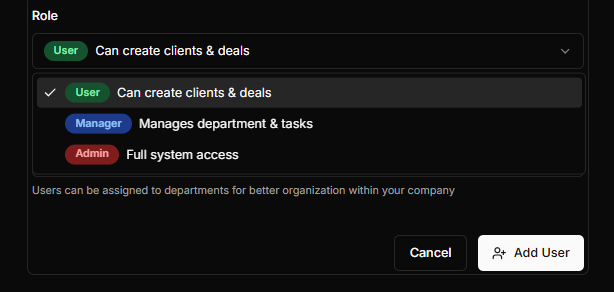
Regular Employee / User
Can view and edit only tasks where they are assignee or creator - Can comment, attach files, complete checklist items, change status of their own tasks - Cannot delete tasks - Cannot change assignees on tasks they did not create - Cannot see tasks of other departments unless explicitly assigned
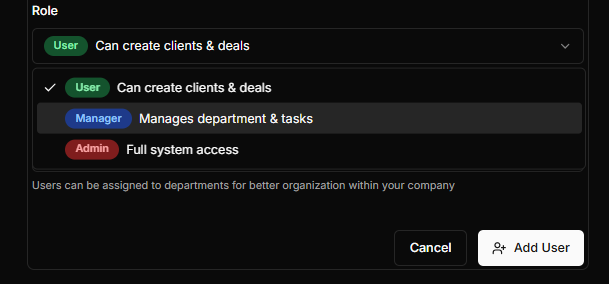
Department Head / Manager
- Full visibility of all tasks inside their department and child departments - Can create, edit, assign, reassign, and delete tasks within their department - Can set and change priorities - Can view (but not edit) tasks from other departments that involve their team members - Receives automatic weekly workload reports for the entire department - Can export department task data
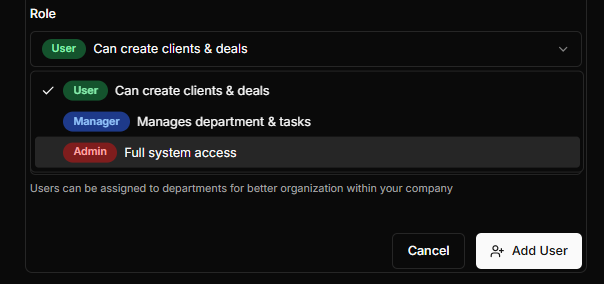
Company Owners / Admin
- Unlimited view of all tasks across all departments - Can create and assign tasks to anyone - Can change any field on any task - Can delete tasks (with mandatory reason log) - Has access to advanced analytics and cross-department reports - Can temporarily impersonate any role for audit purposes - Can configure global settings (default priorities, notification rules, checklist templates) - Can manage task templates and automation rules - Can restore deleted tasks - Full audit log access
This role system ensures both freedom for execution and strong control where necessary.
Best Practices and Common Anti-Patterns
Do: - Always formulate tasks as measurable results (“Sign the contract with Client X” instead of “Work on contract”) - Assign only one primary responsible person (even if multiple executors) - Use checklist for everything that has more than 3 steps - Set realistic deadlines and always add buffer time - Keep all discussion inside the task comments — never “let’s discuss in Telegram” - Review your tasks every morning and every Friday afternoon
Never: - Create tasks without assignee or deadline - Use Tasks as a personal notebook (there is Notes module for that) - Mark task completed if checklist is not 100% - Leave comments like “ok” or “done” — always explain what exactly was done
Risk Management and Team Performance
With Tasks you can instantly see: - Number of overdue tasks per department - Employees with more than 5 high-priority open tasks (potential burnout) - Tasks blocked longer than 3 days (process bottlenecks) - Average completion time per department
When every employee opens Dilmach in the morning and clearly sees their responsibilities, when every manager can see the real picture in one click, when the CEO can sleep peacefully knowing nothing important is falling through the cracks — that is when the company truly starts scaling.
Many companies using Tasks for 6+ months report 35–60% reduction in missed deadlines and significantly higher team discipline.
Conclusion
The Tasks module in Dilmach CRM is far more than a task list. It is the backbone of operational excellence, the single source of truth for “who is doing what and by when,” and the foundation for building a real process-driven culture.
Tasks turns chaos into clarity. Clarity turns into speed. Speed and clarity together create sustainable growth.
Welcome to Dilmach CRM - structured execution. Hope you enjoy education!




Comments
Sign in to comment, like and save posts.
Sign inLoading comments…